¶ Business Relation Administration as buyer
As a buyer you can request business relations directly with suppliers. New business relations will have the status “Pending” until the supplier accepts it.
Using the TecCom Portal, you have the opportunity to connect with the thousands of partners operating in your network. This video explains how to create a business relationship between buyer and supplier.
¶ Adding a partner
As an administrator, you can search for potential business partners and request new business relations through Your TecCom Network > Search TecCom Network.
Only organizations for which you have administrator permissions are displayed in the Your organizations section.
¶ Searching for a partner
- Navigate to Your TecCom Network > Search TecCom Network.
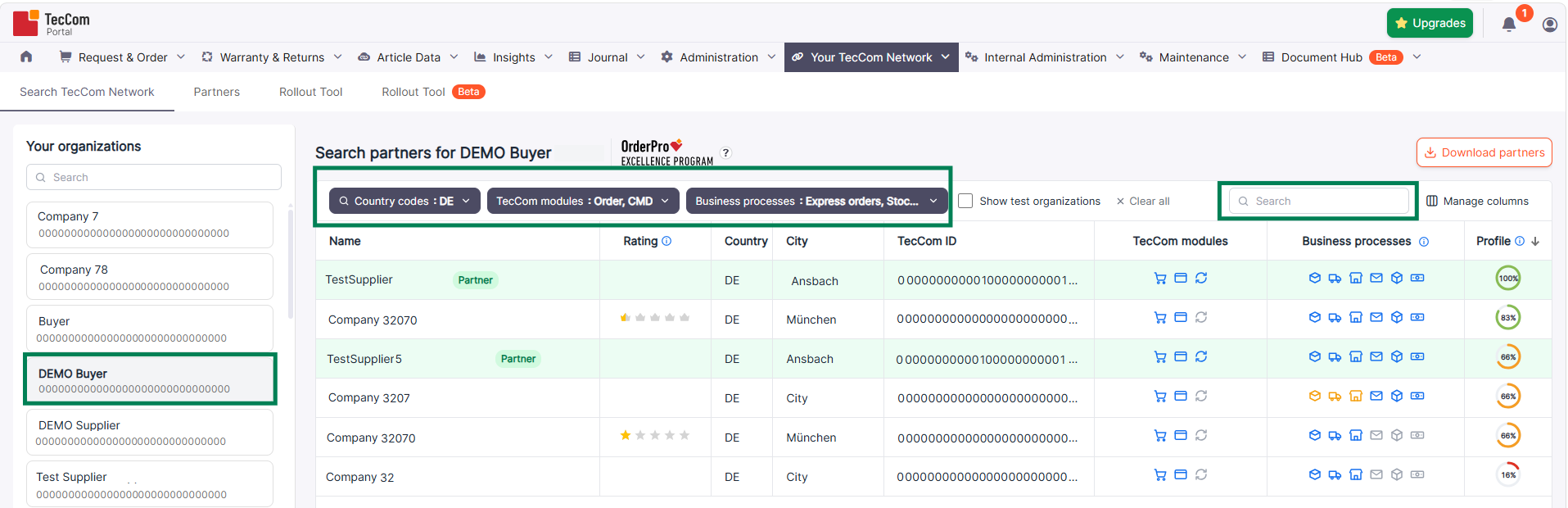
- In the Your organizations section on the left, select the buyer organization for which you want to find a partner.
- Use the search field to find a potential partner by name, TecCom ID, or other available organization information.
- If needed, narrow down the results using the available filters:
- Country codes – Filter organizations by country.
- TecCom modules – Filter by supported TecCom modules.
- Business processes – Filter by supported business processes.
- Show test organizations – Include test organizations in the search results.
By default, organizations are sorted by Profile completeness, with the most complete profiles displayed first. You can also sort the results by Name, Rating, Country, or City.
Organizations that are already your partners are highlighted in green and marked with a Partner badge, making them easy to identify.
You can customize the search results using the following options:
- Manage columns – Choose which columns are displayed in the results table.
- Download partners – Download the complete list of partners. The export includes all partners, regardless of the filters currently applied to the search results.
¶ Viewing partner information
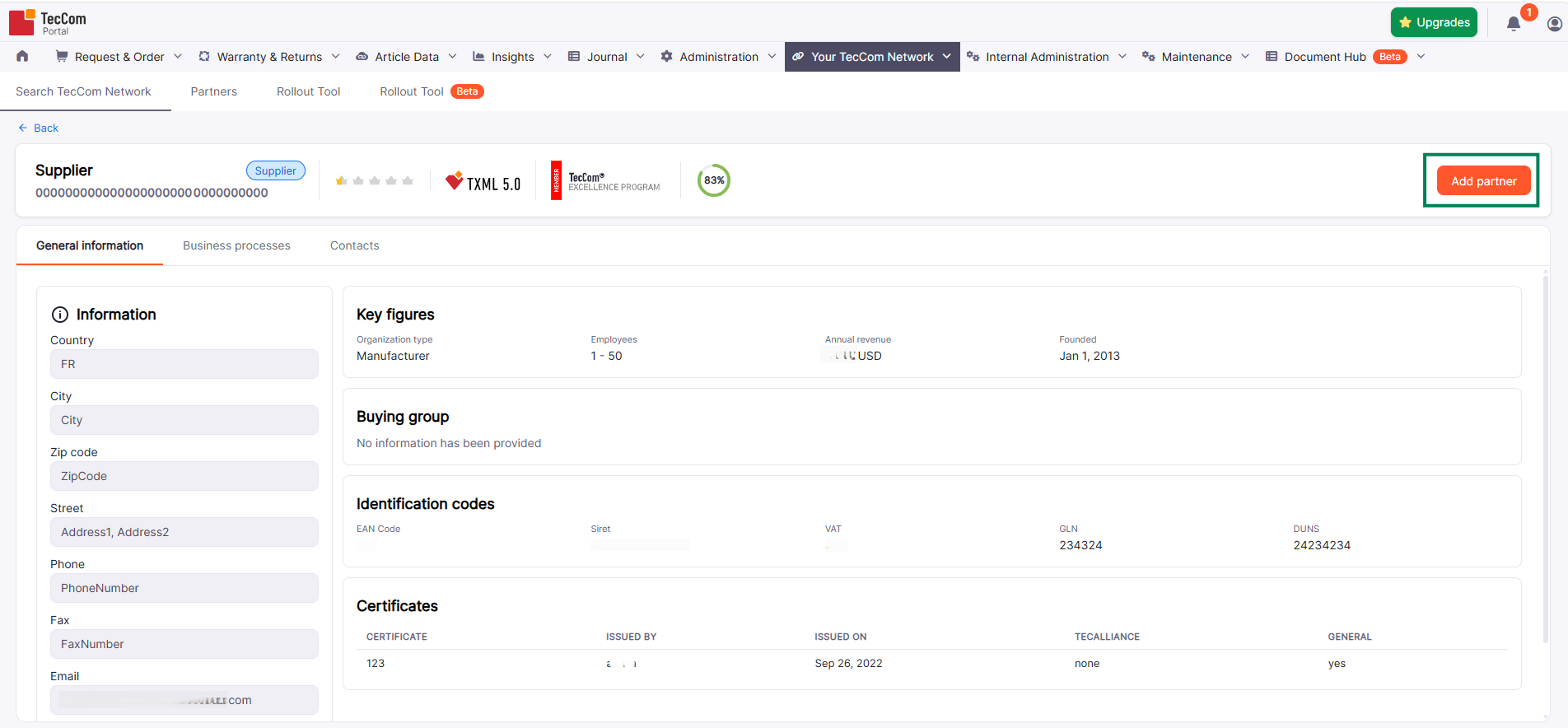
Click an organization in the search results to open its profile.
The profile provides additional information about the organization in the following tabs:
- General information – Organization details, including address and contact information, key figures, buying group, and identification codes.
- Business processes – Business processes supported by the organization.
- Contacts – Available contact information for the organization.
Review the information to ensure you have selected the correct organization before requesting a business relation.
If the organization is already your partner, you can manage the existing business relations through the Partners page or Partner settings button.
¶ Requesting a business relation
- On the selected organization's profile, click Add partner.
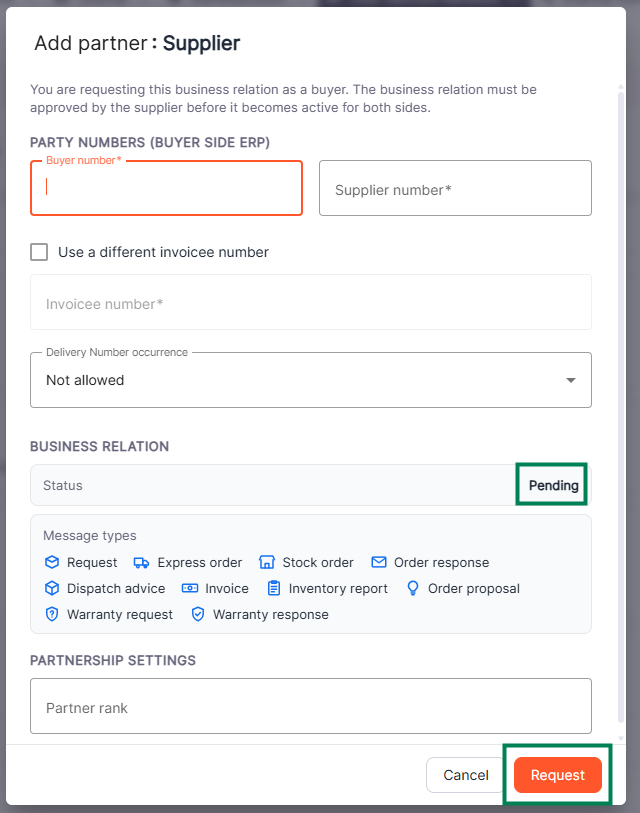
- In the Party numbers (buyer side ERP) section, complete the following fields:
- Buyer number (required) – Enter the buyer number assigned to your organization by the supplier. If you have not received one yet, you can enter a temporary number.
- Supplier number (required) – Enter the number used to identify the supplier in your ERP system.
- Use a different invoice number (optional) – Select this checkbox if you need to specify a separate invoice number. The Invoice number field then becomes available and must be completed.
- Delivery Number occurrence – Select the applicable option:
- Mandatory. A delivery number is required. An additional Delivery number field appears and must be completed.
- Optional. A delivery number can be provided but is not required.
- Not allowed. A delivery number is not permitted. However, a delivery address can still be used without a delivery number.
- Review the Business relation section:
- Status – The new business relation is automatically assigned the status Pending.
- Message types – Displays the message types available for the business relation.
- In Partnership settings, you can enter a Partner rank (optional). This value is used to assign a rank to the partner.
- Click Request to submit the business relation request.
The supplier must approve the request before the business relation becomes active.
Once the supplier accepts it, the status changes to Active, and the partner becomes available for the supported business processes.
Note: If the supplier initiates the business relation, it becomes Active immediately without requiring approval from the buyer.
¶ Administrating the business relations
As an administrator, you can manage your partners and their business relations through Your TecCom Network > Partners.
¶ Accessing and managing your partners
- Navigate to Your TecCom Network > Partners.
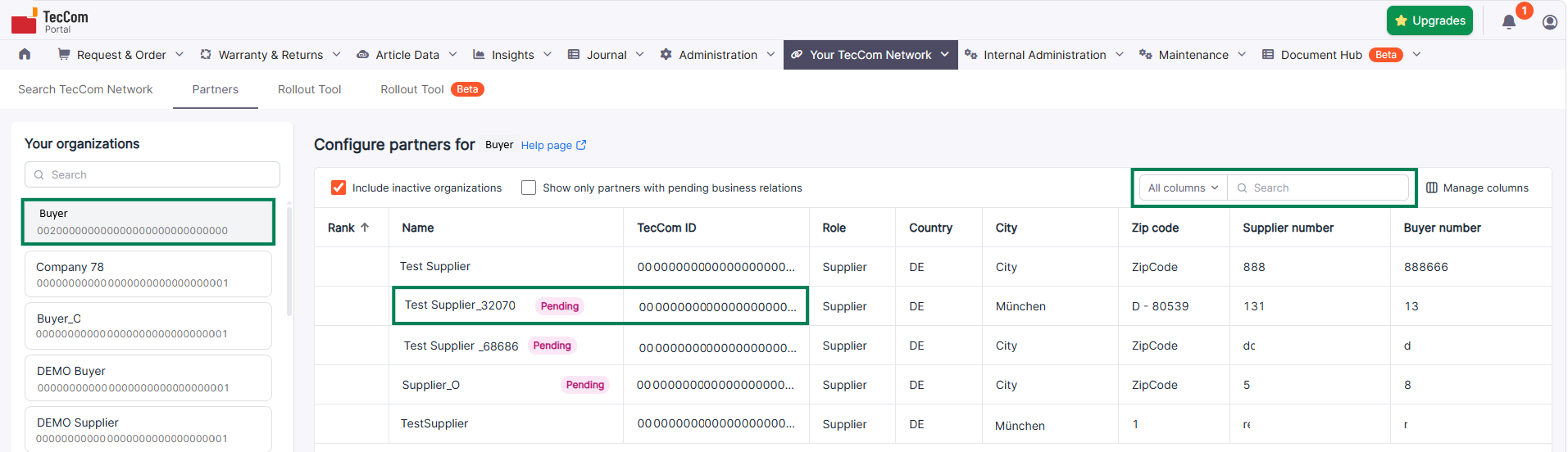
- In the Your organizations section, select the buyer organization whose partners you want to manage.
- The Configure partners for table displays the partners associated with your selected organization.
- Click a partner in the list to open its settings.
You can use the following options to find and manage your partners:
- Include inactive organizations – Include inactive partners in the list. You can view their information, but you cannot modify their settings or business relations.
- Show only partners with pending business relations – Display partners with business relation requests awaiting approval.
- Search – Find partners using the available search criteria.
- Manage columns – Customize the columns displayed in the table.
- Sorting – Sort partners by the available columns, including Rank.
Partners with pending business relations are marked with a Pending badge. This indicates that one or more business relation requests are awaiting approval from the supplier.
¶ Viewing business relations
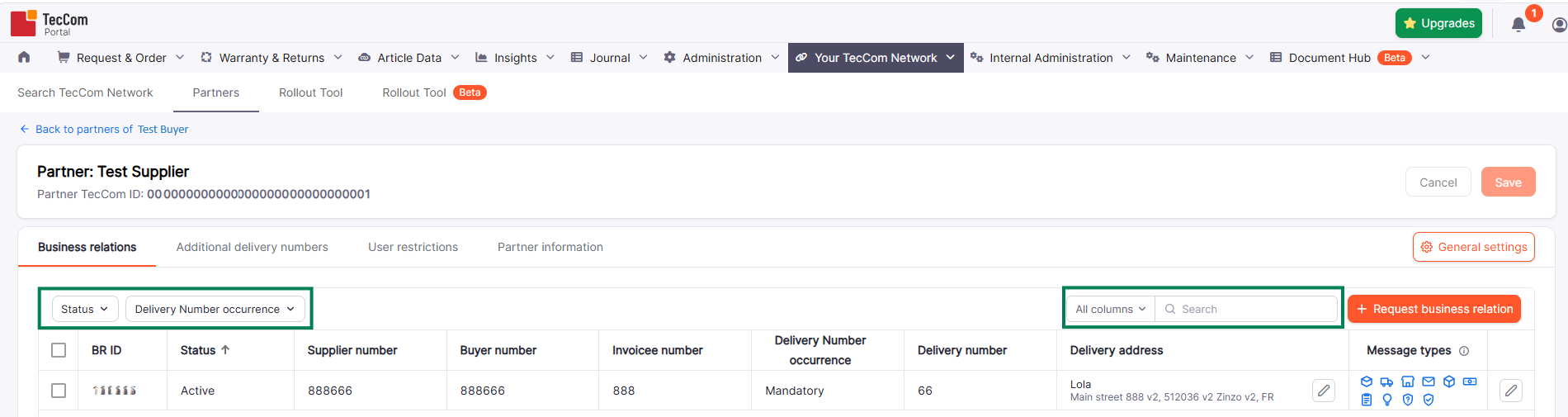
After selecting a partner, the Business relations tab opens.
The partner settings page also provides access to Additional delivery numbers, User restrictions, and Partner information. The Partner information tab displays the selected organization's details.
Business relations tab displays all business relations established or requested between your organization and the selected partner.
Each business relation has its own BR ID, status, party numbers, delivery number settings, and message types.
The following statuses may be displayed:
- Pending – The business relation request is awaiting supplier approval.
- Active – The business relation has been activated.
- Inactive – The business relation is inactive.
- Rejected – The supplier has rejected the business relation request.
You can filter the list using Status and Delivery Number occurrence, search within specific columns, and sort the available results.
The Delivery Number occurrence filter includes Mandatory, Optional, and Not allowed.
¶ Requesting an additional business relation
You can request another business relation with an existing supplier directly from the partner settings page.
- Open the partner's Business relations tab.
- Click Request business relation.
- Complete the required party numbers and delivery number settings.
- Enter a separate invoice number if required.
- Click Request to submit the request.
The new business relation is created with the status Pending. The supplier must approve it before it becomes Active.
Important: A buyer can have up to five Pending business relations with the same supplier. If a Rejected business relation already exists, a new request cannot be created. In this case, please contact Customer Support for assistance.
¶ Editing a business relation
You can edit the information associated with an existing business relation.
- In the Business relations tab, locate the business relation you want to modify.
- Click the edit icon for the corresponding row.
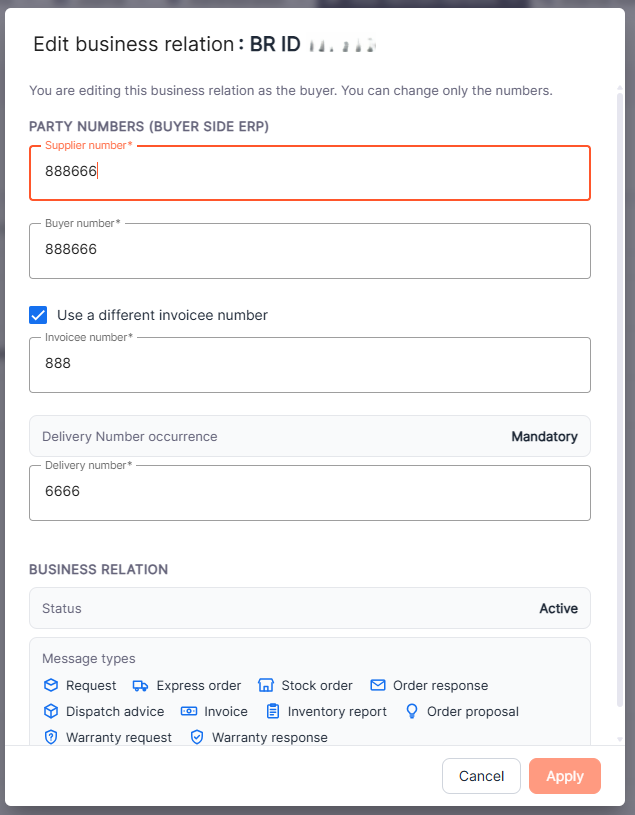
- In the Edit business relation window, update the available fields:
- Supplier number – The number identifying the supplier in your ERP system.
- Buyer number – The number assigned to your organization by the supplier.
- Use a different invoice number – Enable this option to specify a separate invoice number.
- Delivery number – Update the delivery number associated with the business relation.
- Click Apply to apply the changes.
- Click Save at the top of the partner page to save your modifications.
The Delivery Number occurrence, Status, and Message types are displayed for reference and cannot be changed by the buyer when editing an existing business relation.
Changes applied in the editing window are not saved permanently until you click Save on the partner page.
¶ Updating party numbers across related business relations
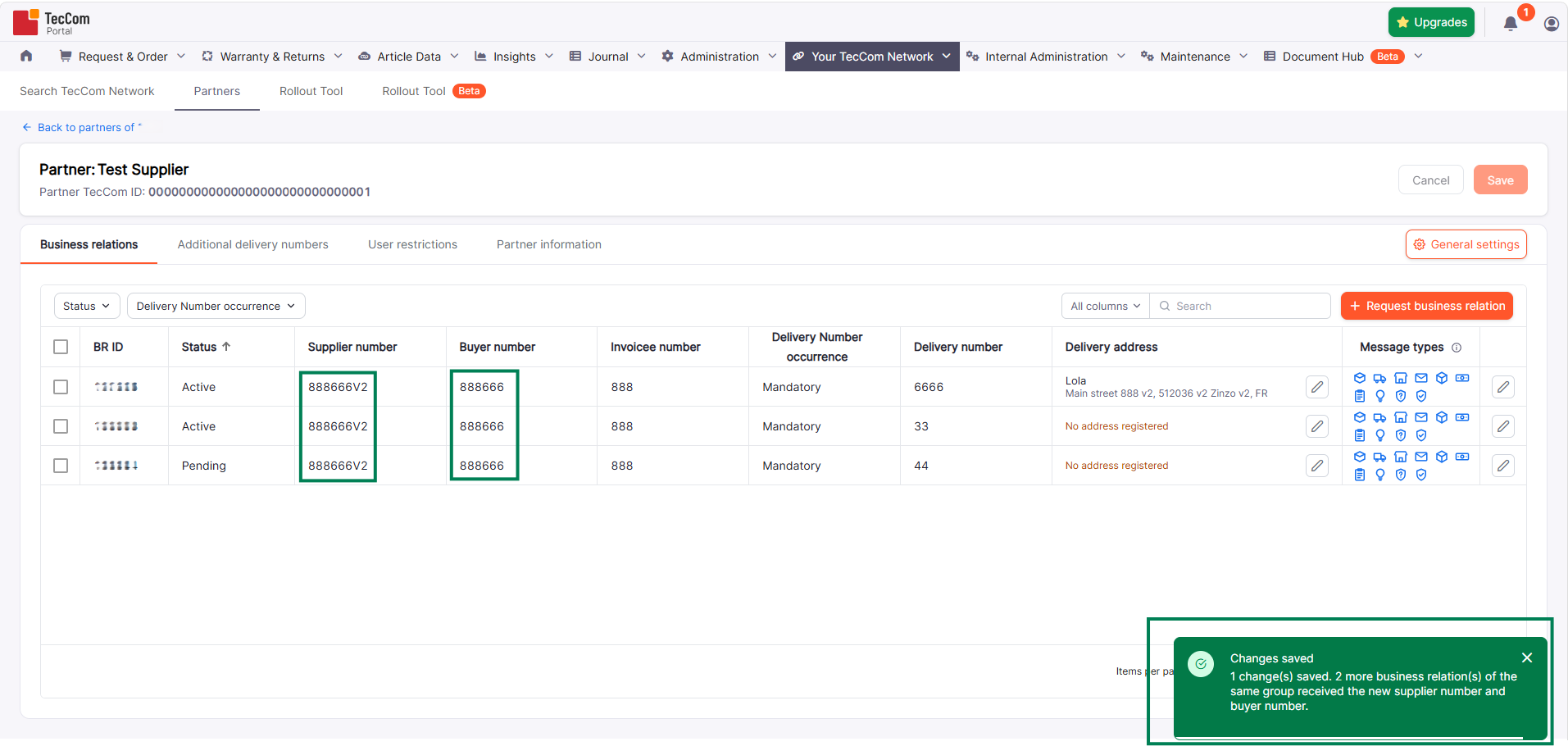
If multiple business relations share the same Supplier number and Buyer number, they are treated as related business relations.
When you update either the Supplier number or Buyer number in one of these business relations, the change is automatically applied to all business relations that share the same original combination of numbers.
To update party numbers:
- Open the Business relations tab and locate the business relation you want to edit.
- Click the edit icon and update the Supplier number or Buyer number.
- Click Apply to apply the changes.
- Review the updated business relations in the table.
- Click Save to save your changes.
Important: Changes to Supplier number or Buyer number affect all related business relations with the same original combination of numbers. Other fields, including Invoice number and Delivery number, remain unchanged.
¶ Managing delivery addresses
A Ship-to address (delivery address) specifies the location where goods should be delivered. By default, orders are usually delivered to your organization's address. If goods need to be delivered to another location, you can use a different delivery address.
Delivery addresses are managed in Administration > Ship-to, where you can create and maintain the list of delivery addresses available for your organization.
A Delivery number is an identifier associated with a delivery address. This number is usually provided by the supplier.
Support for delivery addresses and delivery numbers may vary depending on the supplier.
To assign a delivery address to a business relation:
- Open the Business relations tab.
- Find the business relation containing the delivery number you want to manage.
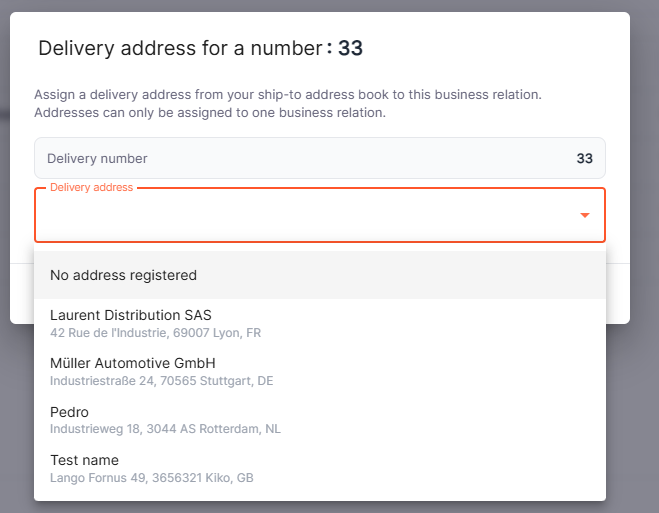
- Click the edit icon in the Delivery address column.
- Select the required address from the Delivery address dropdown list.
- Confirm the selection and click Save on the partner page.
You can also select No address registered if no address should be assigned.
¶ Managing additional delivery numbers
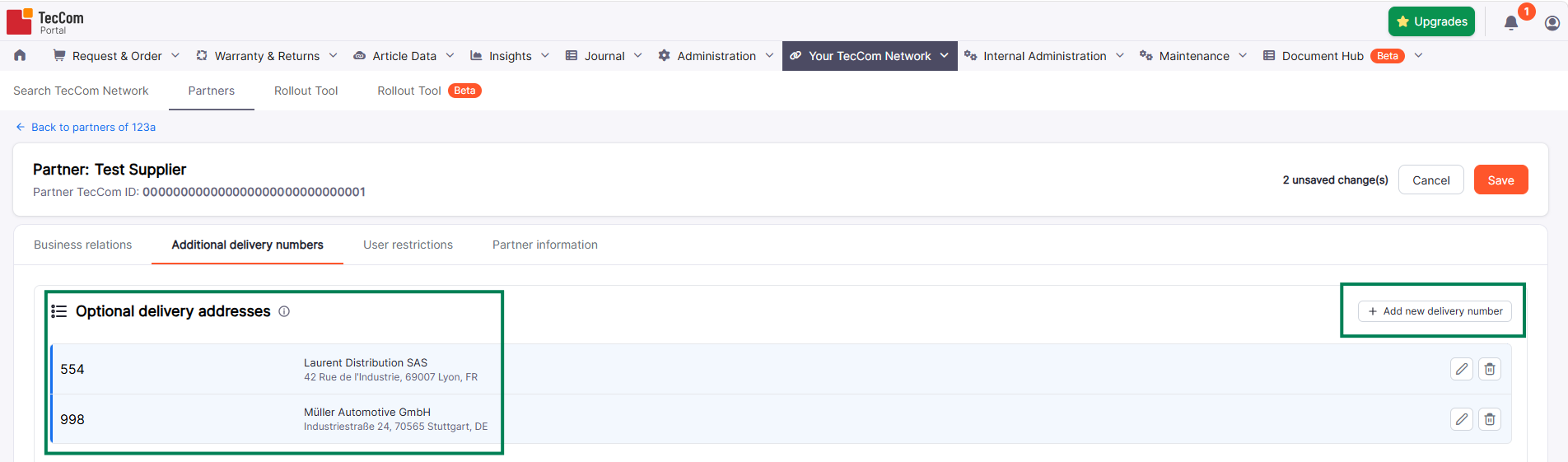
The Additional delivery numbers tab allows you to manage delivery numbers associated with the selected supplier.
Unlike delivery numbers defined in individual business relations, these additional delivery numbers are associated with the partner rather than a specific business relation.
Important: Additional delivery numbers should be agreed upon with the supplier. Orders containing delivery numbers unknown to the supplier may be rejected.
To add an additional delivery number:
- Open the Additional delivery numbers tab.
- Click Add new delivery number.
- Enter the required Delivery number.
- Optionally, select a Delivery address from the available Ship-to addresses.
- Confirm the entry and click Save on the partner page.
Each additional delivery number is displayed in the list. If a delivery address has been assigned, it is shown alongside the delivery number.
You can use the edit and delete icons to modify or remove additional delivery numbers.
Important: The same delivery address can be used for multiple suppliers, but it can only be assigned once for each supplier. To use an address with a different delivery number for the same supplier, first remove its existing assignment and then assign it to the new delivery number.
¶ Deleting business relations
You can delete business relations regardless of their current status.
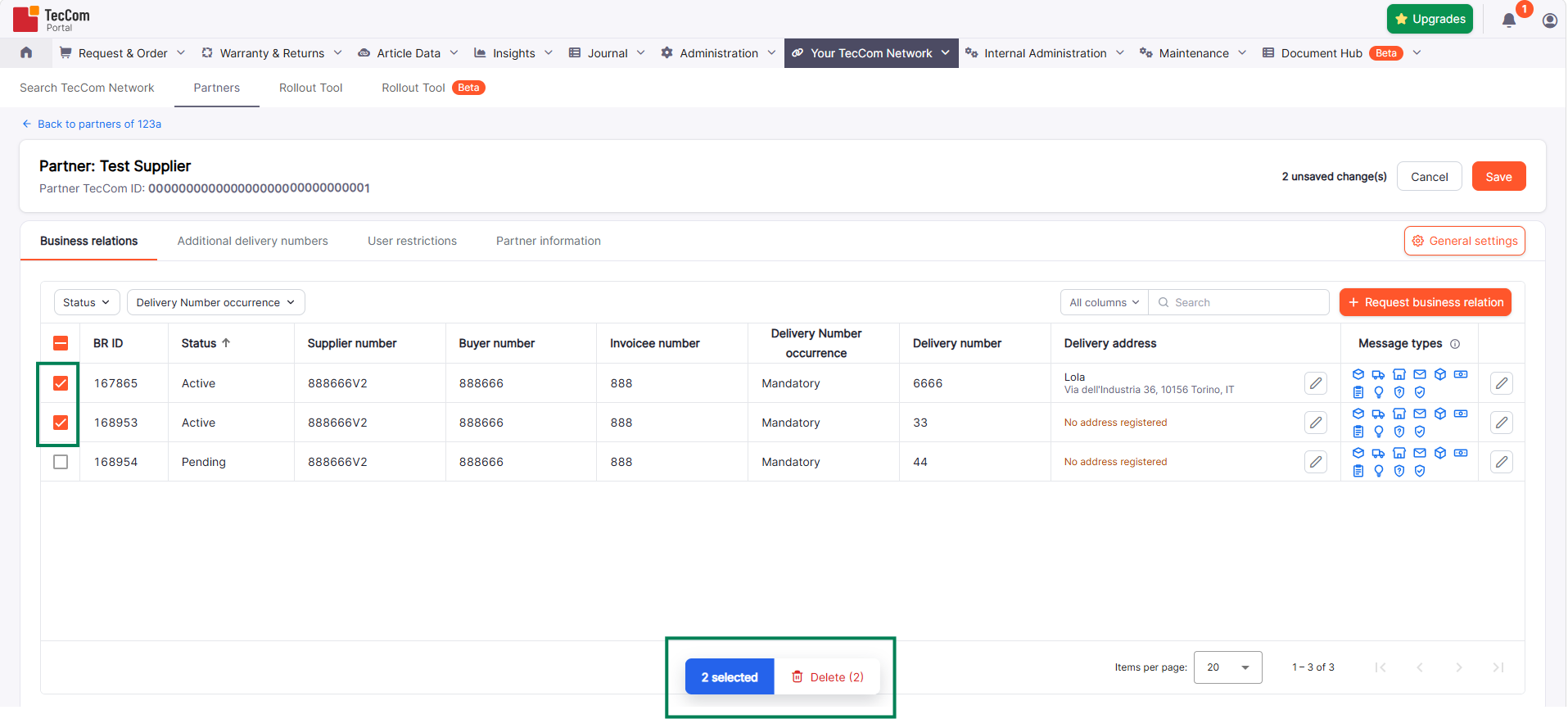
To delete one or more business relations:
- Open the Business relations tab.
- Select the checkboxes next to the business relations you want to delete.
- In the action bar at the bottom of the table, click Delete (N), where N indicates the number of selected business relations.
- The selected business relations are marked for deletion.
- Click Save at the top of the partner page to confirm and save the changes.
You can select and delete multiple business relations at once.
¶ General settings
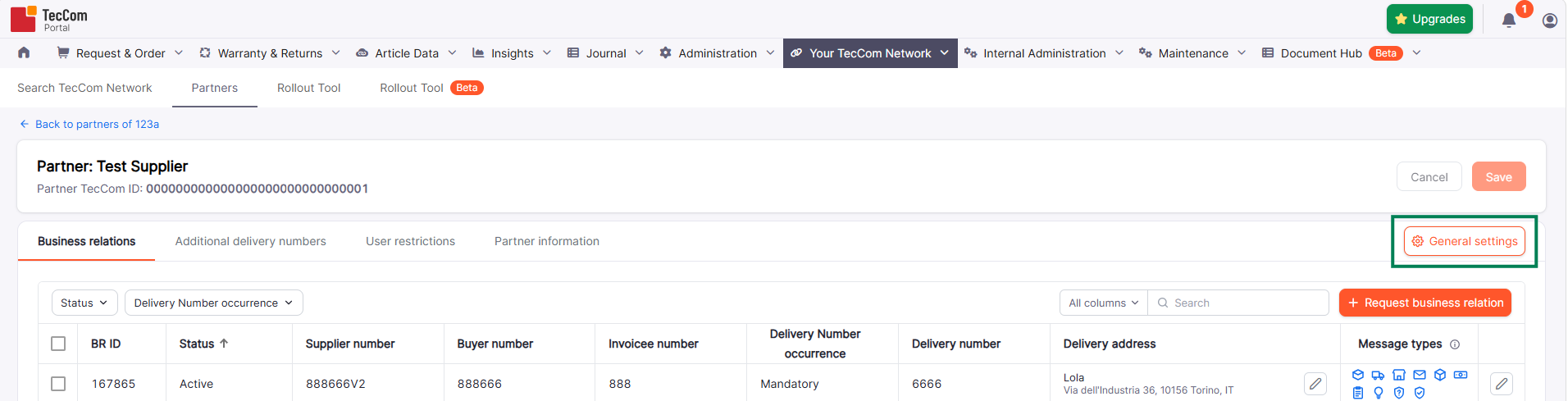
The General settings button opens the partner-level settings.
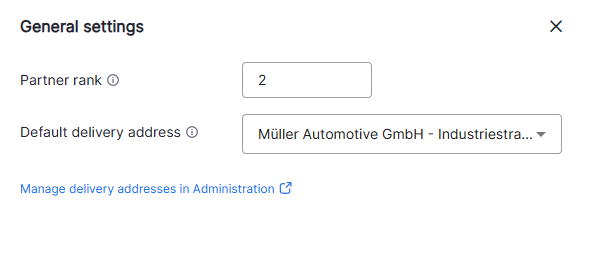
You can configure the following options:
- Partner rank – Defines the partner's display order in the Partners list and Basket. A lower rank number indicates a higher position. For example, rank 1 takes precedence over rank 10.
- Default delivery address – Select the default Ship-to address for the partner.
After updating the settings, click OK and then Save on the partner page.
Click the Manage delivery addresses in Administration link to open the Administration > Ship-to page, where you can manage your organization's delivery addresses.
¶ Managing user restrictions
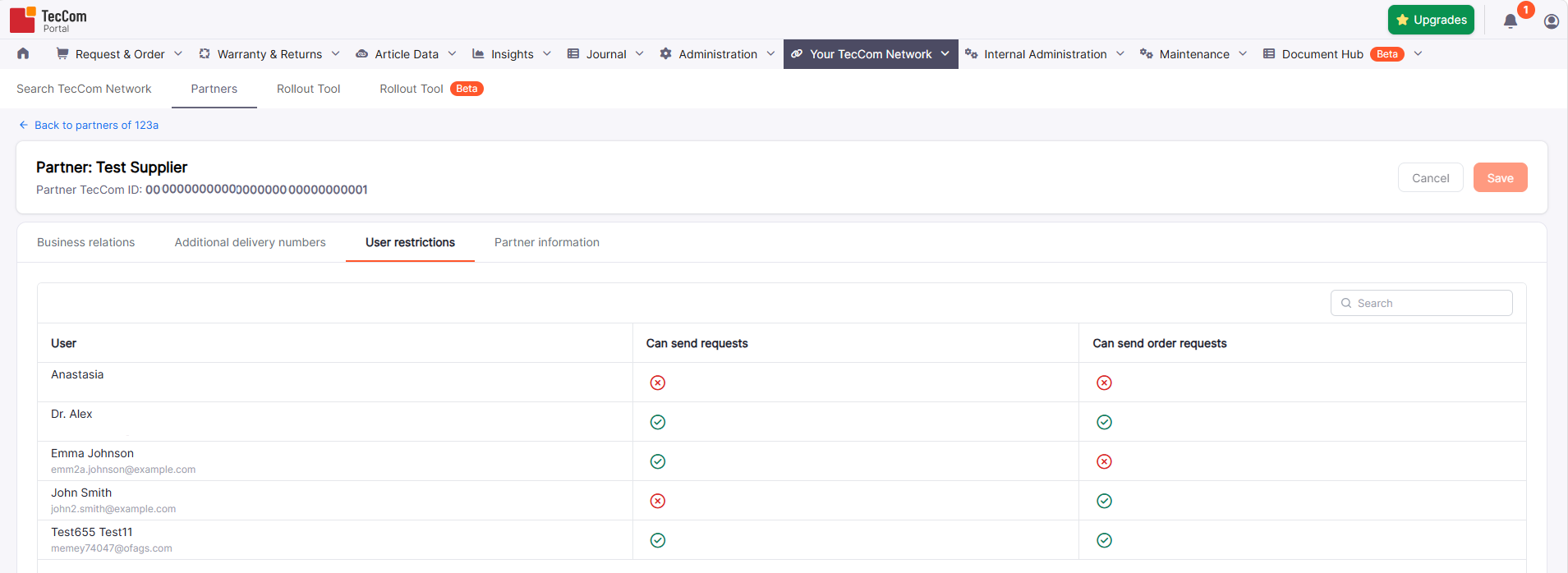
The User restrictions tab allows you to control which users in your organization can interact with the selected partner.
You can manage the following permissions:
- Can send requests – Controls whether the user can send requests to the selected partner.
- Can send order requests – Controls whether the user can send order requests to the selected partner.
To change a user's permissions:
- Open the User restrictions tab.
- Find the user whose permissions you want to modify.
- Click the corresponding permission icon to enable or disable access:
- Green checkmark – Permission granted.
- Red cross – Permission denied.
- Click Save at the top of the partner page to save the changes.
User restrictions apply to the selected partner as a whole, not to individual business relations.
¶ Impact on Request & Order
In “Request & Order => New Request or Order”, the Supplier dropdown list contains only business relations with the status “active”.
Step 1: Select a supplier from the dropdown list
In order to specify the supplier for your request/order, please select the partner from the dropdown list. If the supplier is listed more than once, please decide for the desired business relation based on the buyer and delivery number (following the “/” character).
Step 2 (optional): Select a Ship-to address in the section “Ship-to”
If you want the goods to be delivered to a location different from your company’s address, you have the option to enter the delivery address in the fields inside the section “Ship-to”. If you want to use an address regularly, you can ask your administrator to store it in the TecCom Portal permanently. Then it will be selectable in the dropdown list.
Possible cases regarding delivery numbers / IFD import / default Ship-to
(Information for advanced users)
There are three different cases regarding delivery numbers:
- If the selected business relation has optional delivery numbers, all ship-tos are available for selection from the ship-to list.
- If the selected business relation has mandatory delivery numbers, then the only selectable ship-tos are the ones that have a corresponding delivery number and the ship-to number input is filled and read-only.
- If the selected business relation has not allowed delivery numbers, then the only selectable ship-tos are the ones without a delivery number and the ship-to number input is read-only.
When an IFD file is imported, the temporary ship-to from the file can be used if:
- the selected supplier has optional delivery numbers
- the selected supplier has mandatory delivery numbers, and the ship-to number matches the value
- the selected supplier has not allowed Delivery Numbers and the ship-to number is empty For the following combinations the IFD file import is rejected:
- the selected supplier has not allowed delivery numbers and the ship-to has a number
- the selected supplier has mandatory delivery numbers and the ship-to number does not match the value
When selecting or switching suppliers a default ship-to is available in the following cases:
- If the selected supplier has optional delivery numbers, the default ship-to will be selected
- If the selected supplier has not allowed delivery numbers, the default ship-to will be selected if its number is empty
- the selected supplier has mandatory delivery numbers, the default ship-to will be selected if the number matches the value
¶ Various scenarios for adding business relations
A. You know your partner, already received a customer number and want to set up a business relation
First, you search for your partner and then fill out the buyer and supplier number. If the buyer initiates the relation, the status is “Pending” and the supplier has to accept the business relation, only then it is active. If the supplier initiates the business relation, it is immediately active.
B. As a buyer, you want to set up a business relation to a supplier (from which you are not a customer yet)
First, you search for the partner and fill out any buyer and supplier numbers. The supplier has to accept the new business relation, until then the state is “Pending”. The supplier will get in touch with you to clarify terms and agree upon a matching buyer and supplier number.
C. As a supplier, you want to set up a business relation to a new buyer
You have the possibility to set up the business relations yourself. This makes the onboarding process for your new buyers faster and facilitates the rollout in new markets or countries. First, please search for the partner and fill out the buyer and supplier number. After saving, the business relation is immediately active.
D. As a buyer, you want to establish a business relationship with one of your tool suppliers who uses nexmart solutions.
For all details, please check the next section "nexmart: request of new business relation".
¶ nexmart: request of new business relation
As a buyer, you want to establish a business relationship with one of your tool suppliers who uses nexmart solutions.
This can be requested by using the below form (please ensure that all information is included):
Request for creation of new business relations_nexmart
Nexmart checks the business relationship with the supplier and forwards the request to our TecCom Support. The business relationship is created in the TecCom system and a confirmation is sent to nexmart.
Nexmart then confirms to you the creation of the business relationship and you can also find it in the TecCom Portal -> Your TecCom Network.
Find the current overview of nexmart suppliers here (PDF) or directly via the partner search in the TecCom portal.